Lab-4-1
(8% of the course mark)
JavaScript fundamental hands-on exercises
- The JavaScript Fundamentals Lab is a hands-on workshop designed to provide participants with a foundational understanding of JavaScript programming. Through practical exercises, participants will learn key concepts, syntax, and best practices in JavaScript, enabling them to build interactive and dynamic web applications.
Lab objectives
-
Familiarize participants with the fundamental syntax and data types in JavaScript.
-
Understand variables, data structures, and basic operations.
-
Learn how to use conditional statements (if-else) for decision-making.
-
Gain proficiency in loop structures (for, while) for repetitive tasks.
-
Familiarize participants with functions.
-
Understand arrays, objects, and maps.
-
Gain proficiency in loop structures for, for of, for in and forEach.
Variables
- Open Visual Studio Code, create a folder named: app and create a file named: variables.html and copy the code below:
<!--
  Developer:
  Purpose:
-->

<!DOCTYPE html>
<html lang="en">
  <head>
    <meta charset="UTF-8" />
    <meta name="viewport" content="width=device-width, initial-scale=1.0" />
    <title>Variables</title>
    <script defer src="./variables.js"></script>
  </head>
  <body>
    <p>View the output via: **Developer Tools** > **Console**.</p>
  </body>
</html>
- Create inside the app folder create a file named: variables.js and copy the code below:
/*
  Developer:
  Purpose:
*/

// Complete each of the coding tasks listed below. Place your solution directly under each corresponding task item.

// Task 1. Declare a variable named schoolAddress and initialize it any George Brown College Campus address

// Task 2. Display the value of the variable schoolAddress on the browser console

// Task 3. Update variable schoolAddress and assign another George Brown College Campus address

// Task 4. Display the value of the variable schoolAddress on the browser console

// Task 5. Declare variable that uses the camel case style and assign any value.

// Task 6. Display the value of the variable on the browser console

// Task 7. Declare variable that uses the snake case style and assign any value.

// Task 8. Display the value of the variable on the browser console

// Task 9. Declare a variable of your choice and assign any string of your choice

// Task 10. Display the value of the variable on the browser console

// Task 11. Declare a variable of your choice and assign any number of your choice

// Task 12. Display the value of the variable on the browser console

// Task 13. Declare a variable of your choice and assign any boolean of your choice

// Task 14. Display the value of the variable on the browser console

// Task 15. Declare a variable of your choice and assign an array of either string or number of your choice

// Task 16. Display the value of the variable on the browser console

// Task 17. Declare a variable named vehicle and assign the following properties and values:
// make for example "Honda"
// model for example "Civic"
// vin for example "1GNEK13Z42R123456"

// Task 18. Display the value of the variable on the browser console
Arithmetic
- Open Visual Studio Code and inside the app folder, create a file named: arithmetic.html and copy the code below:
<!--
  Developer:
  Purpose:
-->

<!DOCTYPE html>
<html lang="en">
  <head>
    <meta charset="UTF-8" />
    <meta name="viewport" content="width=device-width, initial-scale=1.0" />
    <title>Arithmetic</title>
    <script defer src="./arithmetic.js"></script>
  </head>
  <body>
    <p>View the output via: **Developer Tools** > **Console**.</p>
  </body>
</html>
- Create inside the app folder create a file named: arithmetic.js and copy the code below:
/*
  Developer:
  Purpose:
*/

// Complete each of the coding tasks listed below. Place your solution directly under each corresponding task item.

// Task 1. Declare a variable named orders and set it to 100

// Task 2. Display the value of the variable on the browser console

// Task 3. Add 5 to orders

// Task 4. Display the value of the variable on the browser console

// Task 5. Subtract 55 to orders

// Task 6. Display the value of the variable on the browser console

// Task 7. Multiply 2 to orders

// Task 8. Display the value of the variable on the browser console

// Task 9. Divide by 4 to orders

// Task 10. Display the value of the variable on the browser console

// Task 11. Modulus by 7 to orders

// Task 12. Raise orders to the 4th power

// Task 13. Display the value of the variable on the browser console

// Task 14. Increment orders

// Task 15. Display the value of the variable on the browser console

// Task 16. Decrement orders

// Task 17. Display the value of the variable on the browser console

// Task 18. Declare a variable named street1 and set it to "Yonge"

// Task 19. Declare a variable named street2 and set it to "Dundas"

// Task 20-a. Declare a variable named location
// Use street1 and street2 to produce this output:
// YONGEandDUNDAS

// Task 21-a. Display the value of the variable on the browser console

// Task 20-b. Update the value of location
// Use street1 and street2 to produce this output:
// YONGEandDUNDAS

// Task 21-b. Display the value of the variable on the browser console

// Task 20-c. Update the value of location
// Use street1 and street2 to produce this output:
// yongeANDdundas

// Task 21-c. Display the value of the variable on the browser console

// Task 20-d. Update the value of location
// Use street1 and street2 to produce this output:
// YoNgEaNdDuNdAs

// Task 21-d. Display the value of the variable on the browser console

// Task 20-e. Update the value of location
// Use street1 and street2 to produce this output:
// Y o n g e a n d D u n d a s

// Task 21-e. Display the value of the variable on the browser console

// Task 22. Declare a variable named validateInput
// Set it to parseFloat(string1);
// Display the value of the variable on the browser console

// Task 23. Set it to isNaN(string1);
// Display the value of the variable on the browser console

// Task 24. Set it to parseInt(string2);
// Display the value of the variable on the browser console

// Task 25. Set it to isNaN(string2);
// Display the value of the variable on the browser console

// Task 26. Set it to parseFloat("12345.99");
// Display the value of the variable on the browser console

// Task 27. Set it to parseInt("123456");
// Display the value of the variable on the browser console
Conditionals
- Open Visual Studio Code and inside the app folder, create a file named: conditionals.html and copy the code below:
<!--
  Developer:
  Purpose:
-->

<!DOCTYPE html>
<html lang="en">
  <head>
    <meta charset="UTF-8" />
    <meta name="viewport" content="width=device-width, initial-scale=1.0" />
    <title>Conditionals</title>
    <script defer src="./conditionals.js"></script>
  </head>
  <body>
    <p>View the output via: **Developer Tools** > **Console**.</p>
  </body>
</html>
- Create inside the app folder create a file named: conditionals.js and copy the code below:
/*
  Developer:
  Purpose:
*/

// Complete each of the coding tasks listed below. Place your solution directly under each corresponding task item.

// Task 1. Implement the if / else logic based on the following conditions
// Variable is monthNumber
// if monthNumber is equal to 12 or 1 or 2
// Display on the console "WINTER"
// if monthNumber is equal to 3 or 4 or 5
// Display on the console "SPRING"
// if monthNumber is equal to 6 or 7 or 8
// Display on the console "SUMMER"
// if monthNumber is equal to 9 or 10 or 11
// Display on the console "FALL"
// else
// Display on the console "Month is not valid."

// Task 2. Implement the logic above to use switch statement

// Task 3. Implement this: https://www.georgebrown.ca/current-students/registrar/academic-records/grades using if, else if and else or switch.
Loops
- Open Visual Studio Code and inside the app folder, create a file named: loops.html and copy the code below:
<!--
  Developer:
  Purpose:
-->

<!DOCTYPE html>
<html lang="en">
  <head>
    <meta charset="UTF-8" />
    <meta name="viewport" content="width=device-width, initial-scale=1.0" />
    <title>Loops</title>
    <script defer src="./loops.js"></script>
  </head>
  <body>
    <p>View the output via: **Developer Tools** > **Console**.</p>
  </body>
</html>
- Create inside the app folder create a file named: loops.js and copy the code below:
/*
  Developer:
  Purpose:
*/

// Complete each of the coding tasks listed below. Place your solution directly under each corresponding task item.

/*
Implement any loop type (do while, for and while) to display the following output on the browser console:

Step 1
Step 2
Step 3
Step 4
Step 5
*/

/*
Implement any loop type (do while, for and while) to display the following output on the browser console:

Step 5
Step 4
Step 3
Step 2
Step 1
*/

/*
Implement any loop type (do while, for and while) to display the even numbers to 10 and display on the browser console:

Step 2
Step 4
Step 6
Step 8
Step 10

Use the modulus operator to do achieve the same result above.
*/

/*
Implement any loop type (do while, for and while) to display the odd numbers to 9 and display on the browser console:

Step 1
Step 3
Step 5
Step 7
Step 9

Use the modulus operator to do achieve the same result above.
*/
Functions
- Open Visual Studio Code and inside the app folder, create a file named: functions.html and copy the code below:
<!--
  Developer:
  Purpose:
-->

<!DOCTYPE html>
<html lang="en">
  <head>
    <meta charset="UTF-8" />
    <meta name="viewport" content="width=device-width, initial-scale=1.0" />
    <title>Functions</title>
    <script defer src="./functions.js"></script>
  </head>
  <body>
    <p>View the output via: **Developer Tools** > **Console**.</p>
  </body>
</html>
- Create inside the app folder create a file named: functions.js and copy the code below:
/*
  Developer:
  Purpose:
*/

// Complete each of the coding tasks listed below. Place your solution directly under each corresponding task item.

// Task 1:
// Create a function named showDate, this function displays the current date on the browser console by using the new Date() object.
// Call the function showDate() to verify it works.

// Task 2:
// Create a function named displayUpper which accepts a string parameter named stringToDisplay, this function displays on the browser console the uppercase version of the string parameter stringToDisplay.
// Call the function displayUpper with a string parameter of your choice after the function declaration to verify it works.

// Task 3:
// Create a function named substractNumbers, which accepts 2 number parameters named x and y.
// This function returns the difference between x and y number parameters.
// Call the function substractNumbers with 2 number parameters of your choice after the function declaration to verify it works (Output should be visible on the browser console).

// Task 4:
// Create a function named addAllNumbers, which accepts an array of numbers called numbersToAdd. This function will loop through the numbersToAdd array and return the sum of all the elements of the numbersToAdd array.
// Call the function addAllNumbers with an array of numbers parameter of your choice after the function declaration to verify it works (Output should be visible on the browser console).

// Task 5:
// Create your own custom function, this function should accept parameters and return a result. Display the output via browser console.
Arrays
- Open Visual Studio Code and inside the app folder, create a file named: arrays.html and copy the code below:
<!--
  Developer:
  Purpose:
-->

<!DOCTYPE html>
<html lang="en">
  <head>
    <meta charset="UTF-8" />
    <meta name="viewport" content="width=device-width, initial-scale=1.0" />
    <title>Arrays</title>
    <script defer src="./arrays.js"></script>
  </head>
  <body>
    <p>View the output via: **Developer Tools** > **Console**.</p>
  </body>
</html>
- Create inside the app folder create a file named: arrays.js and copy the code below:
/*
  Developer:
  Purpose:
*/

// Complete each of the coding tasks listed below. Place your solution directly under each corresponding task item.

// Task 1:
// Create an array named: studentCourseInformation, this array contains objects.

// Below are the object properties.
// studentId: number
// studentFirstName:string
// studentLastName:string
// courses: array of course objects.

// Sample object values:
// {
//   studentId: 12345,
//   studentFirstName: "Steve",
//   studentLastName: "Jobs",
//   courses: [
//     { code: "PSY101", title: "College Physics" },
//     { code: "CHM101", title: "Organic Chemistry" },
//   ],
// }

// Populate the studentCourseInformation array with at least 5 objects.

// Add another object using the push function.

// Use console.log to display the value of the pop function.

// Use a for loop to display the studentId.

// Use a for of loop to display the studentFirstName.

// Use a forEach to display the studentLastName.

// Task 2:
// Given an array numbersToSort = [49396, 59735, 54355, 56009, 70448, 4501, 93610, 80034, 65747, 66400, 91527, 56762, 2601, 64799, 95122, 80412, 4244, 5774, 85034, 44074]

// Write a sort function to sort in ascending order.

// Write a sort function to sort in descending order.
Objects
- Open Visual Studio Code and inside the app folder, create a file named: objects.html and copy the code below:
<!--
  Developer:
  Purpose:
-->

<!DOCTYPE html>
<html lang="en">
  <head>
    <meta charset="UTF-8" />
    <meta name="viewport" content="width=device-width, initial-scale=1.0" />
    <title>Functions</title>
    <script defer src="./objects.js"></script>
  </head>
  <body>
    <p>View the output via: **Developer Tools** > **Console**.</p>
  </body>
</html>
- Create inside the app folder create a file named: objects.js and copy the code below:
/*
  Developer:
  Purpose:
*/

// Task 1 Start

// Task 1 End
- Implement the task described below. Write your JavaScript code between the // Task 1 Start and // Task 1 End comments in the objects.js file.
-
Create an object named Vehicle.
-
Add the following properties to the Vehicle object with the following values:
| Property | Value |
|---|---|
| make | Toyota |
| model | Corolla |
| year | 2023 |
| color | Black |
| engineStatus | false |
- Add the following methods. Click on the tabs to see the descriptions.
- startEngine() function
- stopEngine() function
If the engineStatus is false.
Display the make and model and the text that says that it is now running (See output below).
Toyota Corolla engine is now running.
Set the engineStatus to true.
else
Display the make and model and the text that says that it is already running (See output below).
Toyota Corolla engine is already running.
If the engineStatus is true.
Display the make and model and the text that says that it is now turned off (See output below).
Toyota Corolla engine is now turned off.
Set the engineStatus to false.
else
Display the make and model and the text that says that it is already turned off (See output below).
Toyota Corolla engine is already turned off.
Maps
- Open Visual Studio Code and inside the app folder, create a file named: maps.html and copy the code below:
<!--
  Developer:
  Purpose:
-->

<!DOCTYPE html>
<html lang="en">
  <head>
    <meta charset="UTF-8" />
    <meta name="viewport" content="width=device-width, initial-scale=1.0" />
    <title>Maps</title>
    <script defer src="./maps.js"></script>
  </head>
  <body>
    <p>View the output via: **Developer Tools** > **Console**.</p>
  </body>
</html>
- Create inside the app folder create a file named: maps.js and copy the code below:
/*
  Developer:
  Purpose:
*/

// Task 1 Start

// Task 1 End
- Implement the task described below. Write your JavaScript code between the // Task 1 Start and // Task 1 End comments in the maps.js file.
- Create a new Map() named:ontarioCollegeMap, with the following key and values:
| Key | Value |
|---|---|
| GBC | George Brown College |
| SENECA | Seneca College |
| HUMBER | Humber College |
| CENT | Centennial College |
| SHER | Sheridan College |
| DUR | Durham College |
- Use a forEach and for off loop to display the key and values.
Submission
-
Create a folder named submit.
-
Copy the app folder to the submit folder.
-
Create a zip file of this folder.
-
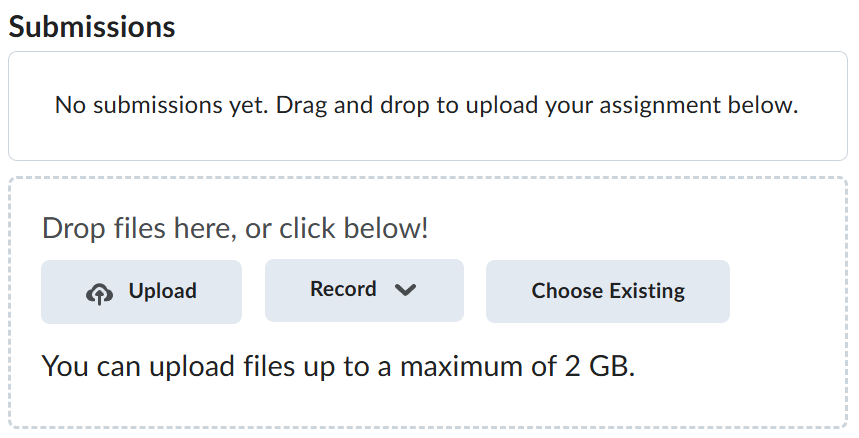
Navigate back to where the lab was originally downloaded, there should be a Submissions section (see below) where the zip file can be uploaded.